
6.7.2 Definition of structural elements
The creation of sheet pile walls,waling,struts and surface loads and ground anchors is described below:
Create a surface between(30 20 0),(30 32 0),(50 32 0)and(50 20 0).
Extrude the surface to z=-1,y=-6.5 and z=-11.
Right⁃click on the deepest created volume(between z=0 and z=-11)and select the Decompose into surfaces option from the appearing menu.
Delete the top surfaces(2 surfaces).An extra surface is created as the volume is decomposed.
Hide the excavation volumes(do not delete).The eye button in the Model explorer and the Selection explorer trees can be used to hide parts of the model and simplify the view.A hidden project entity is indicated by a closed eye.
Click the Create structure button.
Create beams(waling)around the excavation circumference at level z=-1 m.Press the<Shift>key and keep it pressed while moving the mouse cursor in the z⁃direction.Stop moving the mouse as the z⁃coordinate of the mouse cursor is-1 in the cursor position indicator.Note that as you release the<Shift>key,the z⁃coordinate of the cursor location does not change.This is an indication that you can draw only on the xy⁃plane located at z=-1.
Click on(30 20-1),(30 32-1),(50 32-1),(50 20-1),(30 20-1)to draw the walings.Click on the right mouse button to stop drawing walings.
Create a beam(strut)between(35 20-1)and(35 32-1).Press<Esc>to end defining the strut.
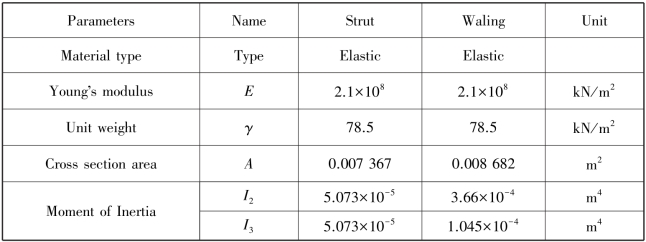
Create data sets for the walings and strut according to Table 6.3 and assign the materials accordingly.
Copy the strut into a total of three struts at x=35(existing),x=40,and x=45.
Table 6.3 Material properties for the beams
Modelling ground anchors
In PLAXIS 3D ground anchors can be modelled using the Node⁃to⁃node anchor and the Embedded beam options as described in the following:
First the ungrouted part of the anchor is created using the Node⁃to⁃node anchor feature.Start creating a node⁃to⁃node anchor by selecting the corresponding button in the options displayed as you click on the Create structure button.
Click on the command line and type“30 24-1 21 24-7”.Press<Enter>and<ESC>to create the ungrouted part of the first ground anchor.
Create a node⁃to⁃node anchor between the points(50 24-1)and(59 24-7).
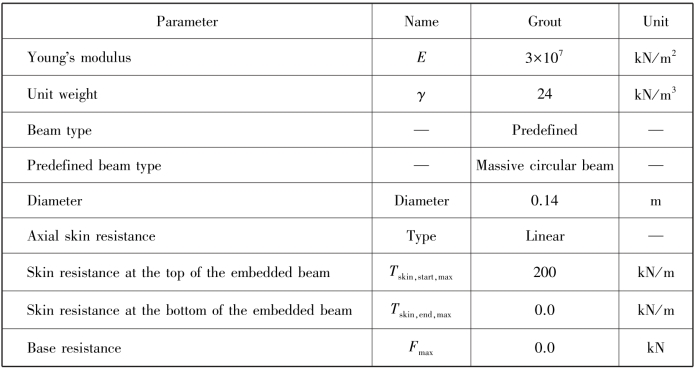
The grouted part of the anchor is created using the Embedded beam option.Create embedded beams between(21 24-7)and(18 24-9)and between(59 24-7)and(62 24-9).Set the Behaviour to Grout body.
Create a data set for the embedded beam and a data set for the node⁃to⁃node anchor according to Table 6.4 and Table 6.5 respectively.Assign the data sets to the node⁃to⁃node anchors and to the embedded beams.
Table 6.4 Material properties for the node⁃to⁃node anchors

Table 6.5 Material properties for the embedded beams(grout body)
The remaining grouted anchors will be created by copying the defined grouted anchor.
Click on the Select button and click on all the elements composing both of the ground anchors keeping the<Ctrl>key pressed.
Use the Create array function to copy both ground anchors(2 embedded beams+2 node⁃to⁃node anchors)into a total of 4 complete ground anchors located at y=24 and y=28 by selection the 1D,in y direction option in the Shape drop⁃down menu and define the Distance between columns as 4 m.
Mull⁃select all parts of the ground anchors(8 entities in total).While all parts are selected and the<Ctrl>key is pressed,click the right mouse button and select the Group from the appearing menu.
In the Model explorer tree,expand the Groups subtree by clicking on the(+)in front of the groups.
Click the Group 1 and rename it to“Groundanchors”.
To define the sheet pile walls and the corresponding interfaces,follow these steps:
Select all four vertical surfaces created as the volume was decomposed.Keeping the<Ctrl>key pressed,click the right mouse button and select the Create plate option from the appearing menu.
Create a data set for the sheet pile walls(plates)according to Table 6.6.Assign the data sets to the four walls.
As all the surfaces are selected,assign both positive and negative interfaces to them using the options in the right mouse button menu.The term positive and negative for interfaces has no physical meaning.It only enables distinguishing between interfaces on each side of a surface.
Table 6.6 Material properties of the sheet pile walls
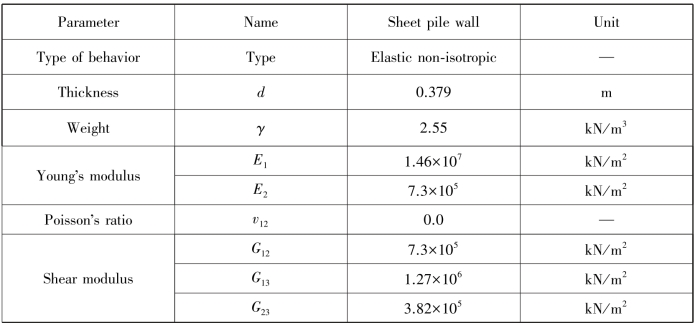
Non⁃isotropic(different stiffnesses in two directions)sheet pile walls are defined.The local axis should point in the correct direction(which defines as the‘stiff’or the‘soft’direction).As the vertical direction is generally the stiffest direction in sheet pile walls,local axis 1 shall point in the z⁃direction.
In the Model explorer tree expand the Surfaces subtree,set Axisfunction to Manual and set Axis1z to-1.Do this for all the pile wall surfaces.The first local axis is indicated by a red arrow;the second local axis is indicated by a green arrow and the third local axis is indicated by a blue arrow.
Create a surface load defined by the points:(34 19 0),(41 19 0),(41 12 0),(34 12 0).The geometry is now completely defined.